
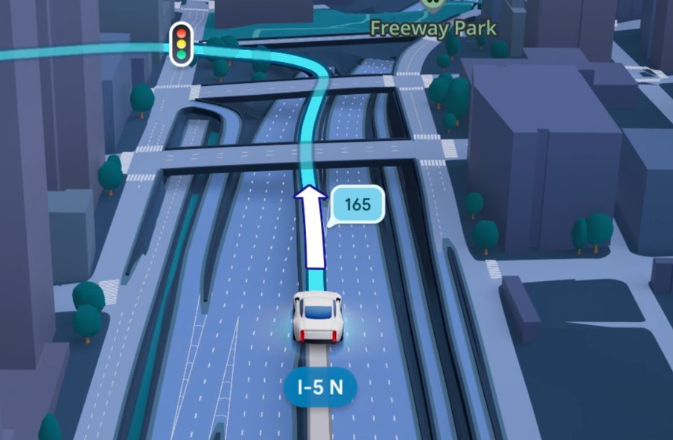
Google Maps has evolved far beyond 2D top-down views. Whether you are scouting a vacation destination or exploring the architectural details of a new city, the 3D mapping features—including the revolutionary Immersive View—provide a lifelike experience from the palm of your hand.
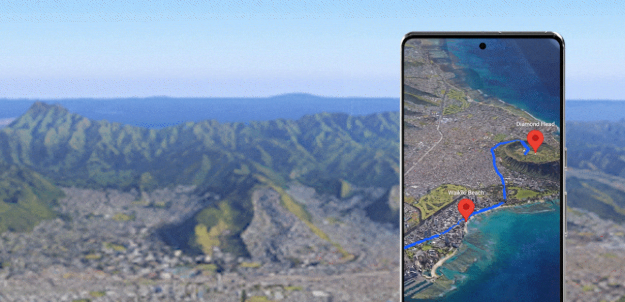
How to Enable 3D View on Google Maps (Mobile)
Most users access Google Maps on iOS or Android. To see the world in three dimensions, follow these steps:
-
Open Google Maps: Ensure your app is updated to the latest 2026 version.
-
Toggle the Layers: Tap the Layers icon (the square icon on the top right).
-
Select “3D”: Under the “Map Details” section, tap the 3D button.
-
The Two-Finger Gesture: This is the most important “Techno Trick.” To tilt the map, place two fingers on the screen and swipe upward. The map will tilt, revealing 3D buildings and terrain.
-
Rotate: Use two fingers to twist the map in any direction.
Viewing 3D Maps on Desktop (Web Browser)
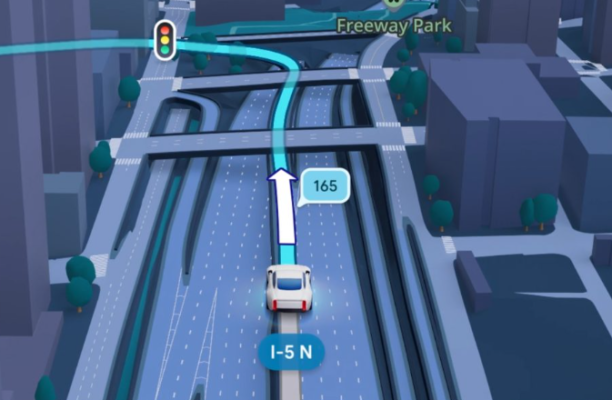
The desktop version offers the highest level of detail, especially for 3D terrain and complex cityscapes.
-
Step 1: Go to google.com/maps.
-
Step 2: Click on the Layers box in the bottom left corner.
-
Step 3: Click More and ensure Globe View is checked.
-
Step 4: Hold the Ctrl key (Windows) or Command key (Mac) while clicking and dragging with your mouse to tilt the camera angle.
-
Step 5: Alternatively, click the 3D icon in the bottom right corner of the screen to toggle instantly.
Experience “Immersive View”
Immersive View is Google’s most advanced 3D feature. It uses AI to fuse billions of Street View and aerial images to create a digital twin of the world.
-
How to use it: Search for a famous landmark (e.g., The Eiffel Tower or Landmark 81). If available, an Immersive View card will appear at the bottom.
-
Time Slider: A unique feature of Immersive View is the ability to slide through different times of the day to see how the lighting, weather, and traffic change in 3D.
Troubleshooting: Why is my 3D Map not working?
If you can’t see 3D buildings, check the following:
-
Hardware Acceleration: On a PC, ensure “Hardware Acceleration” is turned on in your browser settings (Chrome/Edge/Safari).
-
Internet Speed: 3D rendering requires high bandwidth. Ensure you are on a stable Wi-Fi or 5G connection.
-
Location Availability: While most major cities (New York, London, Tokyo, Hanoi) have full 3D coverage, some rural areas may only show 3D terrain without 3D buildings.
Summary of 3D Navigation Shortcuts
| Action | Mobile Gesture | Desktop Shortcut |
| Tilt Angle | Two-finger swipe up | Ctrl + Mouse Drag |
| Rotate | Two-finger twist | Shift + Mouse Drag |
| Zoom In/Out | Pinch fingers | Mouse Scroll Wheel |
| Reset North | Tap the Compass | Press ‘N’ on Keyboard |